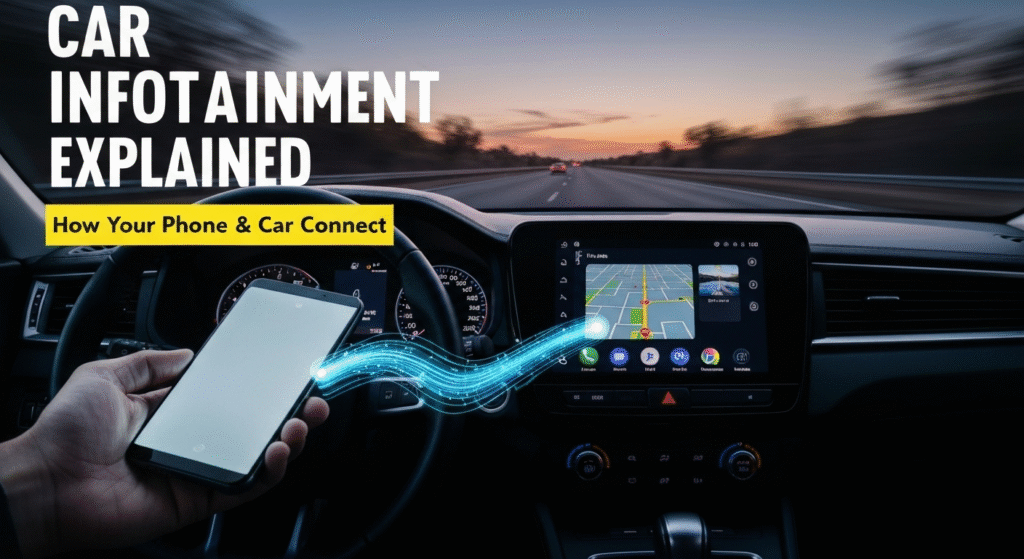

The dashboard of a modern car looks nothing like it did a decade ago. Where there once was a simple radio with a few knobs and a CD player, there’s now a vibrant, glowing screen. This central hub is your car’s infotainment system, and it has become the command center for almost everything you do on the road. It’s more than just a fancy radio; it’s the bridge between your car, your smartphone, and your digital life. But how does it all actually work? Let’s break down the technology that powers your drive.
For the past five years, my world has been deeply intertwined with the nuts and bolts of automotive technology. My curiosity started with simple maintenance and quickly grew into a fascination with how modern vehicles think. This led me to explore and write about everything from engine components to the complex software that runs them. I spend my time digging into how these systems are designed, what makes them work well, and how people can get the most out of them. My goal isn’t to be a formal engineer, but to share what I’ve learned by breaking down complicated topics into clear, useful explanations for fellow drivers and enthusiasts.
What Exactly Is a Car Infotainment System?

At its core, an infotainment system is a combination of hardware and software that delivers “information” and “entertainment” to the driver and passengers. Think of it as a specialized computer built directly into your dashboard. It’s designed to handle a wide range of tasks that were once managed by separate devices.
The primary goal of these systems is to provide control over the vehicle’s features in a central, easy-to-access location. This minimizes distraction and integrates functions seamlessly.
Core Functions Typically Include:
- Entertainment: AM/FM radio, satellite radio (like SiriusXM), Bluetooth audio streaming, USB music playback, and podcast integration.
- Information & Navigation: GPS navigation with real-time traffic updates, vehicle status information (tire pressure, fuel economy), and access to weather forecasts.
- Communication: Hands-free phone calls, reading and dictating text messages, and accessing your phone’s contact list.
- Vehicle Controls: In many new cars, the infotainment screen is also where you adjust climate settings, seat heating/cooling, and even driving modes.
Essentially, the infotainment system acts as the brain and interface for all non-driving-related functions, making your car a connected device.
The Heart of the System: Core Components
Like any computer, an infotainment system is made up of hardware and software working together. The quality and speed of these components directly impact your user experience. A slow, laggy system can be frustrating, while a responsive one makes driving more enjoyable.
Hardware: The Physical Pieces
The hardware is what you can see and touch, along with the powerful processors working behind the scenes.
- The Head Unit: This is the main computer, usually hidden behind the dashboard. It contains the Central Processing Unit (CPU), memory (RAM), and internal storage (like a solid-state drive). A faster CPU and more RAM mean the system will boot up quicker, maps will load smoothly, and switching between apps will be seamless. I’ve worked on cars where a slow processor makes even simple map zooming a frustrating, choppy experience.
- The Display: This is your main point of interaction. Most modern cars use capacitive touchscreens, which are the same responsive type found on your smartphone. They detect the touch of your finger and support multi-touch gestures like pinching to zoom. Older or less expensive systems might use resistive touchscreens, which require a firmer press. Screen size and resolution are also key, as a higher-resolution screen will display sharper maps and clearer text.
- Physical Controls: Despite the move to touchscreens, almost all cars retain some physical buttons and knobs. These are crucial for core functions you need to access without looking, like volume control, tuning, and climate fan speed. This tactile feedback is a key safety feature, allowing you to keep your eyes on the road.
Software: The Operating System (OS)
The software is the operating system that runs everything. You don’t always see it directly, but it manages all the functions of the head unit. Many automakers use proprietary systems built on stable platforms like QNX or Linux. More recently, some manufacturers like Polestar and Honda have adopted Android Automotive, which is different from Android Auto. Android Automotive is a full-fledged OS for the car itself, with the Google Play Store built-in, and doesn’t require a phone to operate. This software is the foundation upon which all the menus, apps, and features are built.
Connecting Your World: Smartphone Integration Platforms

This is where infotainment systems truly shine. Instead of automakers trying to create their own app ecosystems, they leverage the powerful and familiar interfaces of our smartphones through projection systems. These platforms don’t run on the car; they run on your phone and are simply “projected” onto the car’s display.
Apple CarPlay Explained
Apple CarPlay is Apple’s standard for connecting an iPhone to your car. When you plug in your phone (or connect wirelessly), the car’s native infotainment screen is replaced by a familiar, iOS-like interface. Your phone does all the heavy lifting—running the apps, processing the data, and handling navigation calculations. The car’s screen essentially becomes a secondary display and touch input for your iPhone, with an interface that’s been simplified for driving. This gives you access to Apple Maps, Apple Music, Messages, Podcasts, and a selection of third-party apps like Spotify and Waze.
Android Auto Explained
Android Auto is Google’s equivalent for Android smartphones. It functions on the same principle as CarPlay. It projects a simplified, driver-friendly interface onto the car’s screen, giving you direct access to core Google services like Google Maps, Waze, YouTube Music, and the Google Assistant for voice commands. It also supports popular third-party apps like WhatsApp and Audible. The user experience is designed around large, easy-to-tap icons and powerful voice controls to minimize distraction.
Here’s a quick comparison of the two platforms:
| Feature | Apple CarPlay | Android Auto |
| Required Device | iPhone | Android Phone (running a compatible OS version) |
| Primary Voice Assistant | Siri | Google Assistant |
| Default Map Apps | Apple Maps, Google Maps, Waze | Google Maps, Waze |
| Interface Style | iOS-style grid with a sidebar | Card-based interface, highly integrated with Google Assistant |
| Core Concept | Projects a simplified iOS interface onto the car’s screen. | Projects a simplified Android interface onto the car’s screen. |
How You Interact: Controls and Commands
How you control the system is just as important as what it can do. Manufacturers are constantly trying to find the right balance between high-tech touchscreens and the simple, effective nature of physical buttons.
Touchscreen vs. Physical Buttons: A Balancing Act
There is an ongoing debate in the auto industry about the best way to design controls. Each approach has clear advantages and disadvantages.
Touchscreens: Their biggest advantage is flexibility. A single screen can display a navigation map one moment and detailed audio controls the next. They provide a clean, modern look and can be reconfigured with software updates. However, they require you to take your eyes off the road to accurately press an on-screen button, and using them on a bumpy road can be difficult.
Physical Buttons & Knobs: The benefit here is tactile feedback and muscle memory. After a few days in a car, you can reach down and adjust the volume or change the temperature without looking. This is inherently safer. The downside is that they are fixed-function. A button labeled “Fan Speed” can only ever control fan speed, making the dashboard less adaptable.
From my experience testing various cars, a hybrid approach works best. A system that uses a touchscreen for less frequent tasks (like setting up a new phone) but retains physical knobs for common actions (volume, climate) offers the best of both worlds.
| Control Type | Pros | Cons |
| Touchscreen | – Highly flexible and adaptable – Modern, clean appearance – Can display large amounts of information | – Requires taking eyes off the road – Lacks tactile feedback – Can be difficult to use on bumpy roads – Shows fingerprints |
| Physical Buttons | – Provides tactile feedback – Allows for operation without looking – Fast and reliable for core functions | – Limited to a single function – Can clutter the dashboard – Less flexible for future updates |
The Power of Voice: Understanding Voice Commands
Voice command technology has become a cornerstone of modern infotainment systems, acting as a powerful tool for safety and convenience. When you press the voice command button and speak, a multi-step process begins.
- Capture: A microphone in the car captures your voice and converts the sound waves into a digital signal.
- Processing: The system uses Natural Language Processing (NLP) software to filter out background noise and identify the words you said.
- Interpretation: The software then analyzes the phrase to understand its intent. For example, it knows that “Call home” and “I need to phone my house” mean the same thing.
- Execution: Finally, the system executes the command, whether it’s placing a call, changing the radio station, or inputting a destination into the GPS.
It’s important to distinguish between the car’s native voice command system and the assistants you access through CarPlay or Android Auto. Siri and Google Assistant are cloud-based and backed by massive data centers, making them far more powerful and accurate at understanding natural language than most built-in car systems.
Making the Connection: USB vs. Wireless

Getting your phone’s interface onto the car’s screen requires a connection. For years, this meant plugging in a cable, but wireless options are becoming more common.
The Tried-and-True USB Connection
This is the most common and reliable way to connect to Android Auto or Apple CarPlay. A physical USB cable creates a direct link between your phone and the car’s head unit for both power and data.
- Advantages: The connection is extremely stable and provides the highest possible data transfer speed, which means no lag or stuttering. It also conveniently charges your phone while you use it, which is crucial for long trips when you’re running navigation and streaming music.
- Disadvantages: It creates cable clutter in your console. The USB port and the cable itself can also suffer from wear and tear over time, sometimes leading to connection issues.
The Freedom of Wireless Connections
Newer vehicles offer wireless CarPlay and Android Auto. This technology uses a combination of both Bluetooth and Wi-Fi to work.
- How It Works: When you get in your car, your phone and the head unit perform an initial handshake over Bluetooth. Once that connection is established, the system switches to a direct Wi-Fi connection (Wi-Fi Direct) to handle the high-bandwidth task of streaming the screen interface, audio, and command inputs.
- Advantages: The convenience is undeniable. You can just get in your car and go, and your phone will automatically connect from your pocket or bag. It’s clean and clutter-free.
- Disadvantages: It can sometimes be less stable than a wired connection, especially in areas with a lot of Wi-Fi interference. It also drains your phone’s battery significantly faster, so for longer drives, you may still need to plug your phone in to charge. I personally use the wireless connection for short errands, but for any road trip over an hour, I always plug in to ensure a solid connection and a fully charged phone upon arrival.
Keeping Your System Fresh: The Importance of Updates
Your car’s infotainment system is run by software, and just like your phone or laptop, that software needs to be updated. Updates can provide bug fixes, introduce new features, improve performance, and patch security vulnerabilities. Automakers deliver these updates in a few different ways.
How Manufacturers Deliver Updates
- Over-the-Air (OTA) Updates: Pioneered by Tesla, this is the most convenient method. The car uses its built-in cellular or Wi-Fi connection to download and install updates automatically, just like a smartphone. This method is becoming increasingly common across many brands. For more on this, Consumer Reports offers a great explanation of how OTA updates are making cars safer.
- Dealer-Installed Updates: For many vehicles, updating the infotainment software requires a trip to the dealership. A technician will physically connect to the car’s diagnostic port and install the new software. This is a reliable but less convenient method.
- USB Updates via Manufacturer Portals: Some automakers allow you to perform updates yourself. The process usually involves going to the manufacturer’s owner website, entering your Vehicle Identification Number (VIN), downloading an update file to a USB flash drive, and then plugging that drive into your car’s USB port to initiate the installation. I’ve helped friends with this, and my best advice is to follow the instructions perfectly and use a high-quality, properly formatted USB drive.
Troubleshooting Common Infotainment Glitches
Even the best systems can have problems. Connection issues, frozen screens, and unresponsive apps can be frustrating. Here are some quick fixes for common problems.
| Problem | Common Cause(s) | Quick Fix(es) |
| Android Auto/CarPlay Won’t Launch | Faulty USB cable, software bug, incorrect phone settings. | 1. Try a different, high-quality USB cable. 2. Restart your phone and the car. 3. Ensure CarPlay/Android Auto is enabled in your phone’s settings. |
| Screen is Frozen or Unresponsive | Software glitch, overheating. | 1. Turn the car off, wait a minute, and turn it back on. 2. Look for a “soft reset” procedure (often holding down the power button for 10-15 seconds). |
| Bluetooth Audio is Choppy or Drops | Interference, outdated drivers. | 1. “Forget” the device in both your phone’s and car’s Bluetooth settings, then re-pair them. 2. Make sure your phone’s software is up to date. |
| Wireless Connection Fails | Wi-Fi interference, software pairing issue. | 1. Toggle Wi-Fi and Bluetooth off and on on your phone. 2. Delete the car from your phone’s known devices list and set up the wireless connection again. |
Frequently Asked Questions (FAQs)
Can I add Apple CarPlay or Android Auto to an older car?
Yes. If your older car has a standard-sized radio slot (single-DIN or double-DIN), you can purchase an aftermarket head unit from brands like Pioneer, Kenwood, or Sony that comes with CarPlay and Android Auto functionality built-in.
Does using navigation on my phone through the car screen use my phone’s data plan?
Yes, it does. When you use Google Maps, Waze, or Apple Maps through CarPlay or Android Auto, your phone is the one running the app and pulling map and traffic data from the internet. The car screen is only acting as a display.
Why does my wireless connection sometimes lag or seem slow?
A slight lag can be normal with wireless systems. It can be caused by Wi-Fi interference from other devices, or if your phone is working hard running multiple apps in the background. If it becomes severe, try restarting your phone or switching to a wired USB connection.
Is it safe to update the infotainment system myself using a USB drive?
Generally, yes, as long as you follow the manufacturer’s instructions precisely. Make sure you download the correct file for your specific vehicle model and VIN. Interrupting the update process (like turning the car off midway) could cause system issues, so only start it when you have enough time to let it finish.
Conclusion
The car infotainment system has evolved from a simple music player into the digital heart of the modern vehicle. By blending sophisticated hardware, intuitive software, and seamless smartphone integration, it keeps us connected, guided, and entertained on the road. Understanding how these components work together—from the head unit’s processor to the way your phone projects its screen—demystifies the technology and empowers you to get the most out of your driving experience. As these systems continue to advance, they will only become more integrated into our vehicles, further blurring the line between car and connected device.